
Does My Monitor Need a VESA Adapter? The 3-Minute Fit Test
By Joel – FlowDeskLab. I compare spec sheets and long-term owner reports so you don’t waste money on gear that won’t fit.
The short answer: You don’t need a VESA adapter if the back of your monitor has four exposed threaded holes arranged in a square (75mm x 75mm or 100mm x 100mm apart). You do need an adapter if the back is smooth plastic, a curved bowl shape, or a factory stand that won’t unscrew.
That two-sentence answer covers most people. But three traps still sink setups even when the holes line up – recessed mounts, the weight minimum, and the desk itself. I haven’t bolted every monitor on the market to an arm; nobody has. What I’ve done is compare the manufacturer spec sheets against hundreds of owner installation reports, and the same three failure points keep surfacing. Here’s how you check yours before spending a cent.
1. The visual VESA check
Almost every arm follows the VESA MIS-D standard, which means the mounting plate is drilled for holes spaced exactly 75mm x 75mm or 100mm x 100mm apart.
Flip your monitor over. If you see those four holes in a square, you’re structurally ready.
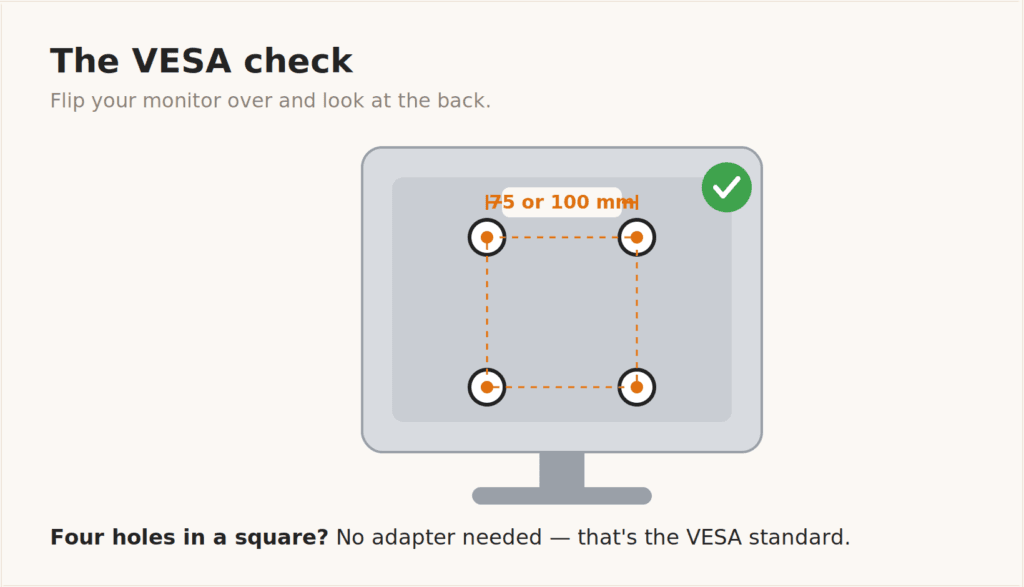
But owners keep hitting a second trap: the recessed mount. If your screw holes sit at the bottom of a plastic square depression, a flat 100mm plate can be too wide to drop into that cutout.
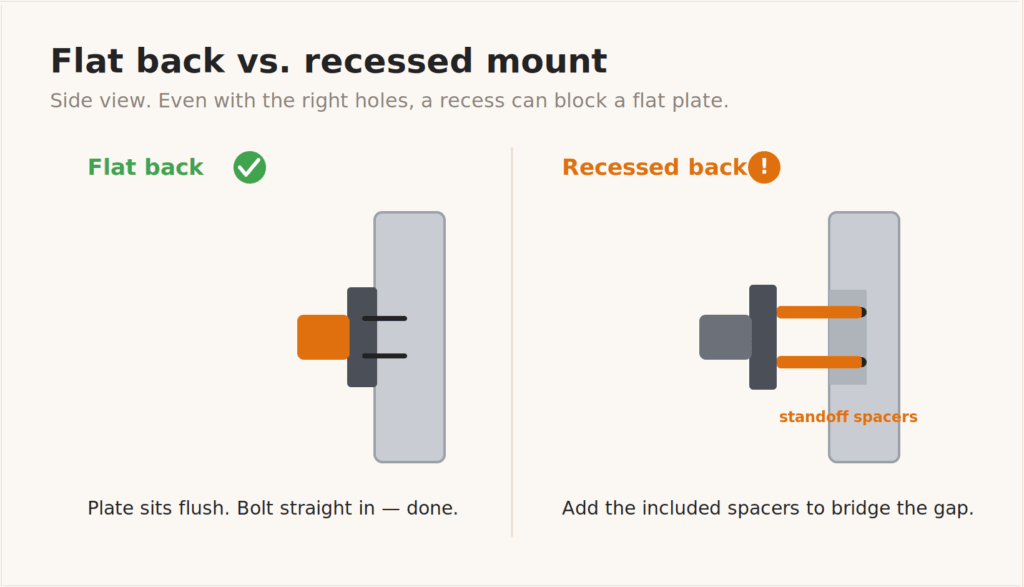
What the spec actually means: if your holes are recessed, owners report a deep enough cutout can make the monitor awkward to seat flush on the plate – you may need spacers or an extender to clear the plastic, and some arms include them in the box. If there are no holes at all, you’re forced to buy a proprietary adapter bracket built for your exact model number. Worth knowing before you assume any arm will fit.
2. The weight trap (and why arms float to the ceiling)
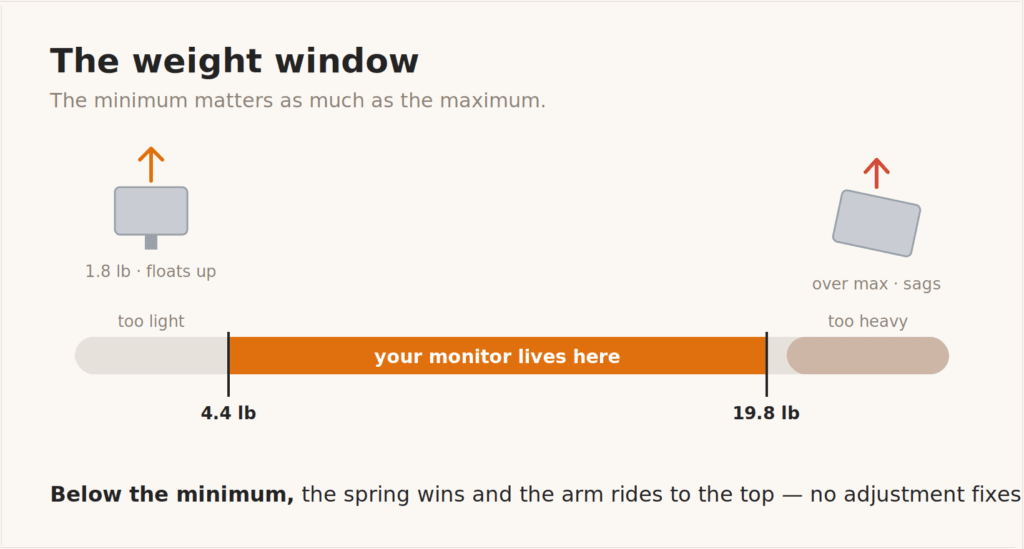
An arm’s whole job is fighting gravity, and the spec sheet gives you the maximum it’ll hold – usually somewhere between about 17.6 and 24 lbs. The number that quietly ruins setups is the minimum.
Gas-spring arms need your monitor’s weight to stay down. Mount something too light – say a 1.8 lb portable display on an arm rated for 4.4 to 17.6 lbs – and the spring wins. The arm drifts back to its highest position and parks there, no matter how you adjust it.
Land inside the range and you’ve still got a step to do. Owners constantly report the screen slowly tilting downward, not realizing a 15 lb monitor often needs the tension hex-bolt turned 11 full rotations or more before it actually holds.
What the spec actually means: the weight rating is a window, not a ceiling. Confirm your monitor clears the bottom of it, and budget five minutes for tensioning – or your screen sags by mid-afternoon.
3. Will it wreck your desk?
A standard arm clamps on with a C-clamp, usually built for desks somewhere between about 0.4 and 3 inches thick – though the exact range varies by model (some stop around 2.5 inches, others reach past 4), so check the one you’re buying.
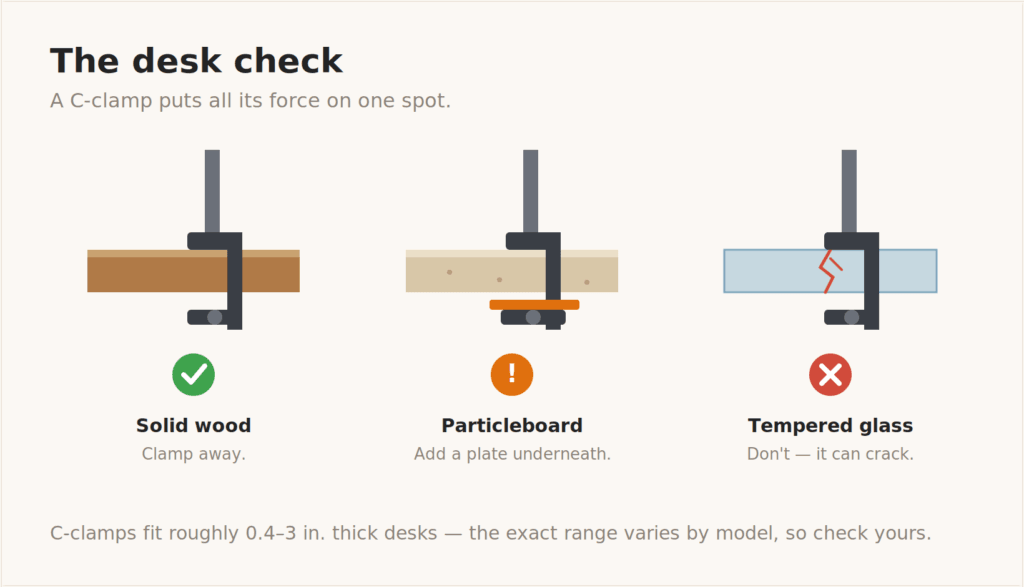
If that’s a hollow-core particleboard desk – the IKEA-style stuff – the focused pressure from a heavy monitor can crush the veneer or punch straight through. Owners get around it by slipping a solid block of wood or a steel reinforcement plate between the clamp and the underside of the desk.
If your desk is tempered glass, don’t use a C-clamp arm at all. The localized pressure can shatter the whole top. That’s not a tradeoff; it’s a hard no.
Take the test to your desk
I put this whole fit check — VESA pattern, weight window, desk type, and the recessed-mount catch — on a single printable page you can hold up to the back of your monitor. Drop your email and I’ll send it over, free.
What I’d put my money on
If your monitor clears the VESA and weight checks, you want one arm that fixes the sag and wobble without costing more than the screen it’s holding.
I’d put my money on the NB SmooVex (Model A5).
The 4pm question – does it still hold at the end of the workday? Yes. Instead of a gas cylinder that can bleed pressure over the months, it runs an upgraded mechanical spring, and owners report the gradual afternoon sag just doesn’t show up.
The tradeoff: it caps out at a 32-inch screen and 19.8 lbs, so a big 49-inch ultrawide is out – though owners do report it holding a 34-inch at around 11 lbs without complaint. For any standard 17-to-32-inch monitor, it’s the most stable single arm I’d put on a desk, and at about $31 it’s the rare upgrade that won’t cost more than the screen on it.
One thing I’ll be straight about: the SmooVex is a 2026 release with a smaller review pile than the gas-spring veterans, so the no-sag promise is well-reported but not yet years-deep proven. If a long track record matters to you more than the mechanical-spring upgrade, a well-reviewed gas arm is the safer known quantity – you’ll just be back to managing the slow sag this one is built to avoid.
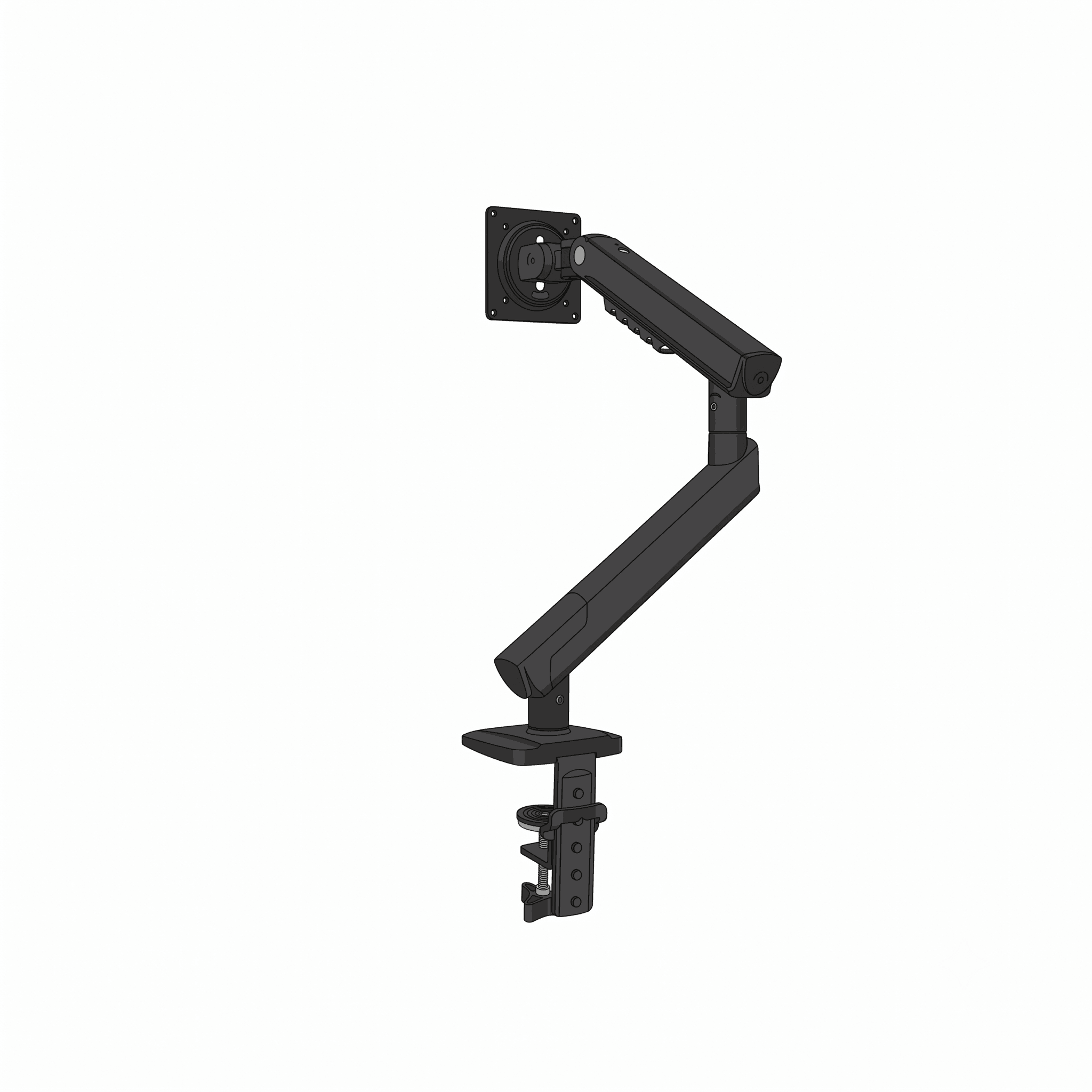 Top Pick for Non-VESA Monitors
Universal VESA Adapter Kit
Securely mount your screen to any standard monitor arm with this sturdy, easy-to-install bracket system.
Fits standard 75x75mm and 100x100mm mounts
Solid steel construction for a secure, wobble-free hold
Quick and simple 3-minute installation process
Check price on Amazon →
Top Pick for Non-VESA Monitors
Universal VESA Adapter Kit
Securely mount your screen to any standard monitor arm with this sturdy, easy-to-install bracket system.
Fits standard 75x75mm and 100x100mm mounts
Solid steel construction for a secure, wobble-free hold
Quick and simple 3-minute installation process
Check price on Amazon →
Who this isn’t for
The plug-and-play buyer. If you won’t pick up an Allen wrench to dial in tilt and lift tension, keep your factory stand. No arm I’ve looked at works right straight out of the box – calibration is the price of admission.
The glass desk owner. Unless you’re willing to drill a permanent grommet hole to mount a base, skip the arm. A clamp and tempered glass don’t end well together.
Frequently asked questions
Does every monitor have VESA holes?
No. Most monitors built for an office or productivity use the VESA standard, but many budget and consumer screens ship with a smooth back and no holes. Those need a model-specific adapter bracket or a clamp-on no-VESA mount.
What’s the difference between 75×75 and 100×100 VESA?
It’s just the spacing between the four mounting holes in millimeters. Smaller monitors often use 75x75mm; most 24-inch and larger screens use 100x100mm. Nearly all arms support both, so you rarely have to choose.
Why does my lightweight monitor keep floating to the top?
Gas-spring arms need a minimum amount of weight to balance the spring. If your monitor is below the arm’s minimum rating, the spring overpowers it and pushes the screen to its highest position. The fix is an arm with a lower minimum, or a heavier monitor.
Can I put a monitor arm on a glass desk?
Not with a standard C-clamp. The clamp concentrates pressure on one point and tempered glass can shatter under it. Use a desk with a solid surface, or drill a grommet hole and use a through-desk bolt mount instead.
How heavy a monitor can a budget arm hold?
Most single arms under $40 top out somewhere between 17.6 and about 24 lbs. The NB SmooVex A5 is rated to 19.8 lbs, which covers nearly every standard 17-to-32-inch monitor but rules out large 49-inch ultrawides.
